s1ft has four settings tabs: General, AI Engine, Calendars, and Privacy. This article explains each control and its default value.
To open Settings, click the s1ft menu bar icon and click Settings… at the bottom of the popup. You can also press Cmd + , while the popup is open.
General
The General tab controls where s1ft saves recordings, how long audio files stay on disk, whether s1ft starts at login, and which transcription model it uses. An Advanced section at the bottom holds the silence timeout and debug logging.
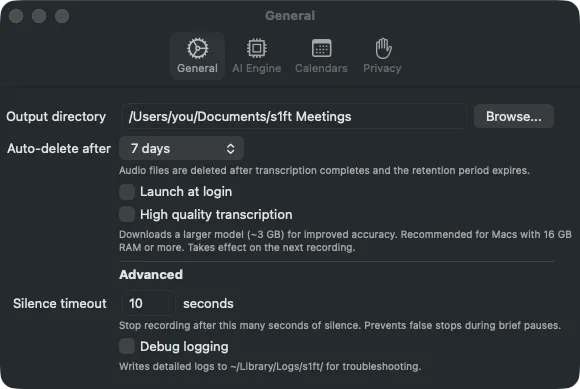
- Output directory — The folder where s1ft saves recordings, transcripts, and summaries. The default is
~/Documents/s1ft Meetings. Click Browse… to select a different folder. - Auto-delete after — How long s1ft keeps the audio files. The options are Immediately, 1 day, 3 days, 7 days, 14 days, 30 days, and Keep forever. The default is 7 days. s1ft deletes the audio files when transcription is complete and the retention period has ended. Transcripts and summaries are not deleted.
- Launch at login — When this is on, s1ft starts when you log in to your Mac. The default is off.
- High quality transcription — When this is on, s1ft downloads a larger transcription model (about 3 GB) and uses it for the next recording. This model gives better accuracy. It is recommended for Macs with 16 GB of RAM or more. While the download runs, a progress bar shows how many GB are complete. When the model is installed, the caption tells you that you can turn the toggle off to free about 3 GB. The default is off.
Advanced
The Advanced section is always visible at the bottom of the General tab. It is not a collapsed disclosure.
- Silence timeout — The number of seconds of silence after which s1ft stops a recording. This prevents false stops during short pauses. Type a value from 1 to 60. The default is 10 seconds.
- Debug logging — When this is on, s1ft writes detailed logs to
~/Library/Logs/s1ft/. Turn it on only when you troubleshoot a problem. The default is off.
AI Engine
The AI Engine tab is where you connect s1ft to the AI that writes your summaries. The tab has three sections, top to bottom: Summarization Engine, If Your Engine Fails, and Post-meeting summary.
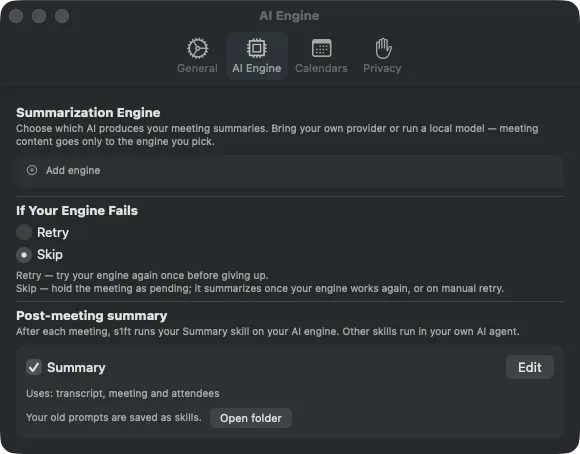
This section is a reference for what the tab contains. For the step-by-step setup, read AI Engine Setup.
Summarization Engine
This section lists the engines you have added. Click Add engine to add one. The picker offers four presets (Anthropic, OpenAI, Ollama (local), LM Studio (local)) and an Advanced / Custom… option for any other compatible endpoint.
Each engine row shows:
- A selector circle on the left. Click it to make the engine active. The circle is disabled until the engine is verified.
- The verification state: Not verified, Verified with a date, or Verification failed with the cause.
- The consent state for a remote engine: Consent required, Consent granted, or Consent revoked.
- A … menu with Verify, Revoke Consent (remote engines only), and Delete.
When you select a remote engine for the first time, s1ft shows a consent sheet titled Send Meeting Content to
If Your Engine Fails
This picker has two options. The default is Skip.
- Retry — s1ft tries your engine one more time before it gives up.
- Skip — s1ft holds the meeting as pending. It asks before it sends waiting meetings to your engine, and you can also retry a meeting manually. Failed summaries are never retried automatically. See AI Engine Setup.
Post-meeting summary
This section holds the Summary entry. After each meeting, s1ft runs your Summary skill on your AI engine. The Summary switch turns this on and off. It replaces the old AI summaries switch from the General tab.
If no engine is active, meetings wait with the status “pending — engine needed”. When an engine becomes active, s1ft asks before it sends waiting meetings.
- Edit — Opens the Summary editor. A skill you changed shows an Edited badge.
- Open folder — Opens the
skills/importedfolder in Finder. Earlier versions of s1ft let you keep several prompts. s1ft saved your other prompts there as skills, so you can use them in your own AI agent. After you update, a note says “Your other prompts were saved as skills here”. It shows once. Click Dismiss to close it. - Skill file unreadable — If the
SKILL.mdfile of the Summary skill is missing or broken, an orange notice shows and no summary runs. Click Restore default to write the Summary skill that s1ft ships.
In the Summary editor, the Uses boxes decide which data s1ft sends to your engine: Transcript, Meeting and attendees, and My voice numbers (pitch range, level, and pauses for each span of your own voice). s1ft sends only the checked data. By default, Transcript and Meeting and attendees are checked. You can’t clear the last checked box, so one box always stays on.
For the editor, the imported skills, and what the summary sends, see AI Engine Setup. To run the same summary in your own AI agent, see Connect AI agents. The files that hold the data are in the meeting data reference.
Agent skills that review your own delivery are in the guide: see Review your delivery with an AI agent.
Calendars
The Calendars tab lets s1ft name recordings after events in your calendar accounts. s1ft reads these accounts through the macOS Calendar app. There is no login in s1ft.
s1ft reads the titles, times, and attendees (names and emails) of events that overlap a recording. It saves them in that meeting’s folder, in the file meeting.json. It also reads your own email address to label each account. All of this happens on your Mac, through the system Calendar. s1ft stores no calendar passwords. The Meeting and attendees box in the Summary editor controls whether this data is sent to your AI engine.
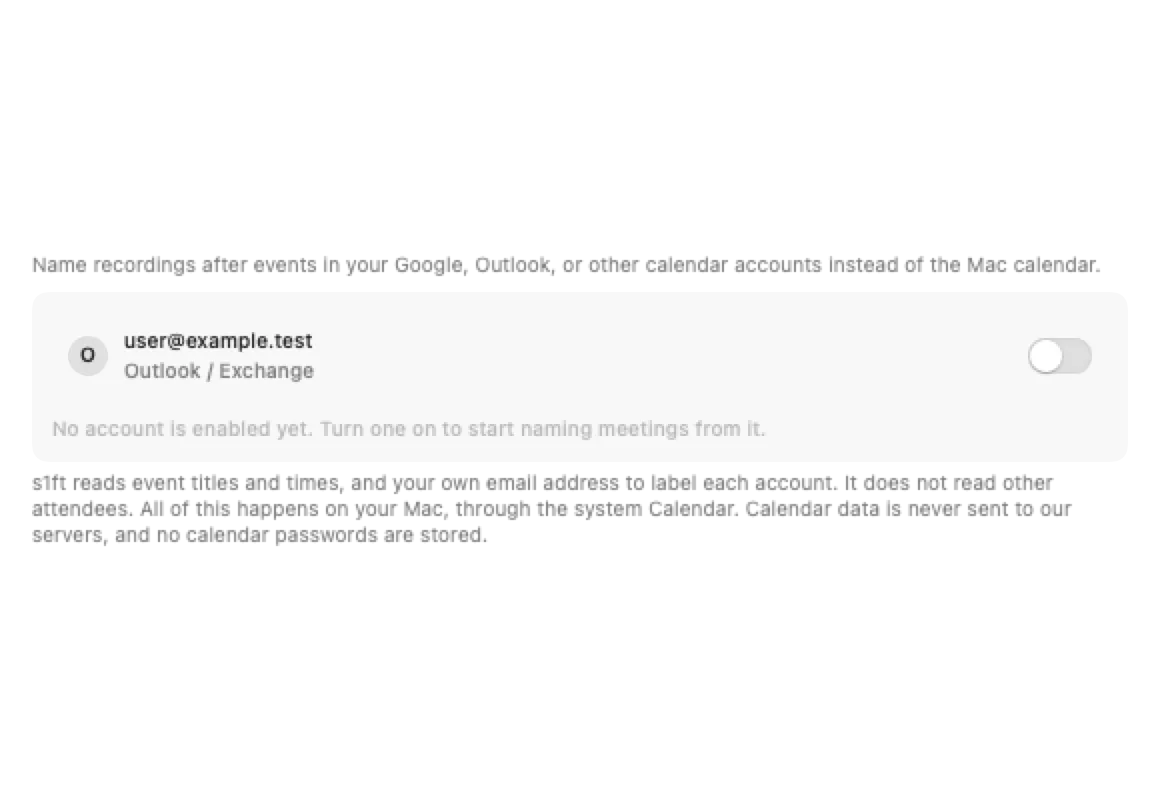
What the tab shows depends on the Calendar permission state:
- Access not yet requested — The tab shows a Grant Access… button. Click it. macOS asks you to allow Calendar access for s1ft.
- Access turned off — The tab shows an orange notice and an Open System Settings button. Turn Calendar access on in System Settings, then come back.
- Access granted, no accounts — The tab tells you to add your Google or Outlook account in System Settings → Internet Accounts. An Open System Settings button takes you there.
- Access granted, accounts found — The tab lists each calendar account with a toggle. Turn a toggle on to use that account for meeting naming. Until at least one account is on, a note says “No account is enabled yet.”
Each row shows the email address of the account. If s1ft finds no email address, the row shows the account name.
Subscribed calendars, for example holiday feeds, do not show in the list.
When you add a new account in System Settings, it shows in the list a short time later. You do not need to restart s1ft.
Privacy
The Privacy tab holds three disclosure templates you can send to meeting participants before you record, plus the consent reminder toggle.
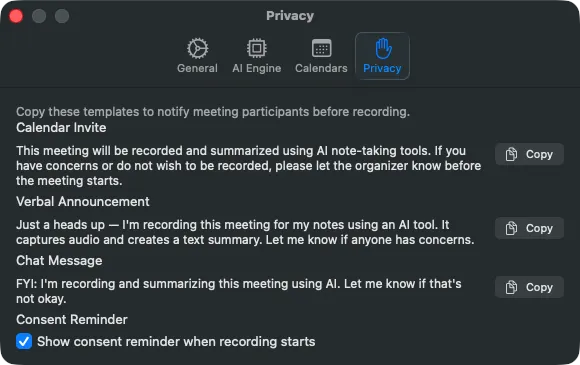
Each template has a Copy button. Click it to put the text on your clipboard. The button shows Copied for two seconds.
- Calendar Invite — A formal notice for a calendar event description. It tells participants that the meeting will be recorded and summarized, and asks them to tell the organizer if they have concerns.
- Verbal Announcement — A short script you can say at the start of a meeting.
- Chat Message — A one-line notice for the meeting chat.
At the bottom of the tab:
- Show consent reminder when recording starts — When this is on, s1ft shows a reminder each time a recording starts. The default is on. This toggle is disabled until you complete the first-run setup. For what the reminder looks like and how consent works, read Recording & consent.
What’s next
- AI Engine Setup — Connect a provider or a local model, step by step.
- Local Models with Ollama and LM Studio — Run summaries on your own Mac.
- Finding Your Recordings — Where s1ft puts the files it writes.