Where recordings are stored
By default, s1ft saves all recordings to ~/Documents/s1ft Meetings/ (a folder called “s1ft Meetings” in your Documents directory). Each recording gets its own subfolder inside that directory.
You can change this location at any time:
- Click the s1ft icon in your menu bar, then click Settings….
- In the General tab, find the Output Directory field.
- Type a new path directly, or click Browse… to pick a folder.
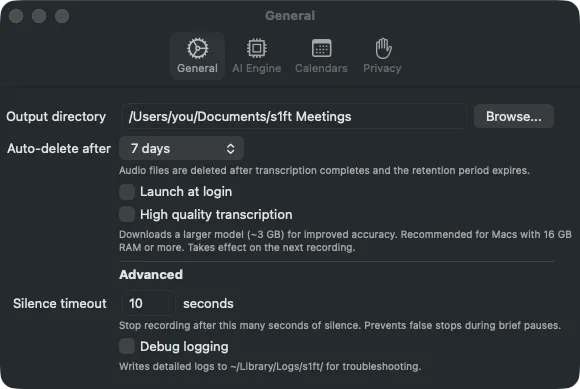
The new path takes effect for the next recording. Existing recordings stay where they are.
What’s inside each recording folder
When s1ft finishes a recording, the folder for that meeting contains up to five files:
| File | What it is |
|---|---|
mic.wav | Audio captured from your microphone |
system.wav | Audio captured from the meeting app (what you hear) |
transcript.json | Merged transcript with a time and a speaker for every segment (created after transcription) |
meeting.json | Meeting name, time, and calendar attendees |
summary.md | AI-generated summary (created if the Summary switch is on in Settings > AI Engine) |
The two WAV files are raw, uncompressed audio. They can be large — roughly 10 MB per minute at 16 kHz mono, or significantly more at higher sample rates. If you’ve set up a WAV retention policy in Settings > General, s1ft automatically deletes the WAV files after the retention period expires and transcription is complete.
The transcript merges both audio tracks by timestamp, so you get a single document with everything that was said. Meetings recorded with older versions of s1ft have a transcript.md file instead. For every field of transcript.json and meeting.json, see the meeting data reference.
Folder naming
Each recording folder follows the pattern:
YYYY-MM-DD-HH-MM_meeting-nameFor example, a Zoom call named “Weekly Standup” that started at 2:30 PM on March 15, 2026 would create:
2026-03-15-14-30_Weekly StandupIf s1ft detected the meeting platform but couldn’t determine a name (no matching calendar event, no tab title — see how meeting names work), the folder uses the platform name instead:
2026-03-15-14-30_zoomFinding recordings in the app
Today’s recordings
Click the s1ft menu bar icon to open the popup. Today’s recordings appear in a list, each showing the start time, meeting name, and duration.
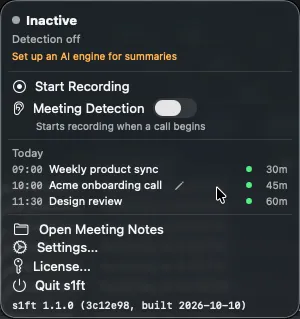
Click any recording in the list to open its folder in Finder. Right-click a recording for more options: Rename, Show in Finder, Transcribe, or Move to Trash.
Open Meeting Notes
At the bottom of the popup, click Open Meeting Notes to open your entire recordings directory in Finder. This shows every recording folder, not just today’s.
Renaming a recording
You can start a rename four ways:
- Hover over a recording and click the small pencil icon that fades in beside the name. Its tooltip says “Rename”.
- Right-click the recording and choose Rename….
- Click Rename on the “Give it a name?” prompt that appears for a manual recording.
- With VoiceOver, use the Rename action on the row.
Clicking the name itself never starts a rename. It opens the recording’s folder in Finder.
Type the new name, then save it any of these ways:
- Press Return.
- Click anywhere outside the name field. If you click another recording, s1ft saves the name and also opens that recording’s folder.
- Close the popup.
To discard your change, press Esc. The name goes back to what it was and the popup stays open.
If you leave the name unchanged, s1ft keeps the calendar name. If you clear the field and save, s1ft keeps the old name. When a new name is saved, s1ft renames both the entry in the list and the folder on disk.
If s1ft detects a better name for a recording (from your calendar, for example), it shows a suggestion like “Rename to ‘Weekly Standup’?” with Yes and Dismiss buttons. This suggestion appears only for the most recent recording and disappears after 60 seconds.
Status indicators
Each recording in the list shows a colored dot to indicate its processing state:
- Pulsing blue dot — transcription or summarization is in progress. Click the dot to see a label like “Transcribing…” or “Summarizing…”.
- Green dot — transcription finished. Click the dot to see buttons that open the transcript or summary file. Open transcript opens
transcript.jsonfor a new meeting, in your default app for JSON files, andtranscript.mdfor an older one. If only one audio track could be transcribed, an orange Partial — retry button also appears here (see Partial transcripts). - Gray dot — recording completed but no audio was captured (blank recording).
- Orange dot — something went wrong. Click the dot to see retry buttons for the failed step.
- No dot, “Transcribe” button — the recording hasn’t been transcribed yet. Click Transcribe to start.
Partial transcripts (“Partial — retry”)
s1ft transcribes your microphone track and the system audio track separately, then merges them. Sometimes one track fails, for example because the transcription step errors out or times out for that file. When that happens, s1ft still builds a transcript from the track that worked, so you don’t lose the whole meeting. It marks the recording as partial instead.
A partial recording has a green dot, like any finished transcript. Click the dot to expand the row. Next to the transcript and summary buttons you’ll see an orange Partial — retry button with a warning triangle.
Hover over the button to read the warning. It starts with “Partial transcript”, names the track that failed (microphone or system audio) and gives the reason. A partial transcript contains only one side of the conversation: if the microphone track failed, your own words are missing, and if the system audio failed, the other participants are missing.
How to retry
- Click the s1ft menu bar icon to open the popup.
- Click the green dot on the recording to expand its row.
- Click Partial — retry.
s1ft puts the recording back in the transcription queue and transcribes both tracks again. The warning clears as soon as the new attempt starts. If both tracks succeed this time, the button doesn’t come back and the transcript is complete.
Retrying needs the original mic.wav and system.wav files, so retry before your WAV cleanup period removes them. If the button keeps coming back, quit and restart s1ft, then retry again.
Deleting recordings
There are two ways to remove a recording:
- From the list — right-click the recording and choose Move to Trash. This deletes the folder and removes the entry from s1ft’s history.
- From Finder — delete the folder directly. The next time s1ft launches, it notices the folder is gone and removes the stale entry from its list.
WAV file cleanup
Large WAV files can fill up your disk. s1ft can delete them automatically after transcription:
- Open Settings > General.
- Find the Delete recordings after setting.
- Pick how long to keep WAV files after transcription completes: immediately, 1 day, 3 days, 7 days, 14 days, 30 days, or keep forever.
With “Delete immediately” selected, s1ft removes the WAV files as soon as transcription finishes. Your transcript and summary files are kept regardless of this setting.