s1ft keeps every meeting as a folder of plain files on your Mac. An AI agent can read those files and do the work you would otherwise do by hand: a follow-up email, a decision log, a weekly look at how you speak. This page shows how to connect an agent, pick a skill, and run it after each meeting.
To see what each library skill does, with an example for each, open the s1ft skills page.
Everything on this page runs on your Mac. s1ft itself sends nothing to an agent. The agent you choose reads the files, and the agent’s own provider sees what the agent reads. Your own meeting summaries are separate: see AI Engine Setup.
What you need
- S1ft 1.3 or later, with at least one recorded meeting. See Getting Started with s1ft.
- An agent that reads Agent Skills: Claude Code, Codex, Cursor, Gemini CLI, or Claude Desktop.
The skills call the s1ft command line. It ships inside the app, at S1ft.app/Contents/Helpers/s1ft. The first time the s1ft skill runs, it links the command to ~/.local/bin/s1ft.
Installation
The base skill s1ft gives an agent access to your meetings. Every library skill uses it. It teaches the agent the s1ft commands, the three data files in each meeting folder, and how to read pauses, pace, uptalk, fillers and interruptions.
Pick the one method that matches your agent.
Claude Code
Run these two commands in your terminal:
claude plugin marketplace add s1ft-app/skills
claude plugin install s1ft@s1ft-skillsThe same works inside a Claude Code session as /plugin marketplace add s1ft-app/skills and /plugin install s1ft@s1ft-skills.
The plugin holds all 8 skills: the base s1ft skill and 7 library skills. Claude Code shows them with the plugin name in front, for example /s1ft:s1ft and /s1ft:decision-log.
Here is the real output. Your first run prints the same lines, plus a line that shows how Claude Code cloned the repository:
$ claude plugin marketplace add s1ft-app/skills
Adding marketplace…
Refreshing marketplace cache (timeout: 120s)…
Clone complete, validating marketplace…
Cleaning up old marketplace cache…
✔ Successfully added marketplace: s1ft-skills (declared in user settings)
$ claude plugin install s1ft@s1ft-skills
Installing plugin "s1ft@s1ft-skills"...
✔ Successfully installed plugin: s1ft@s1ft-skills (scope: user)Claude Desktop
Claude Desktop installs the skills as a plugin from the same GitHub repo. You add the repo as a marketplace, and the S1ft plugin appears in your plugin list.
-
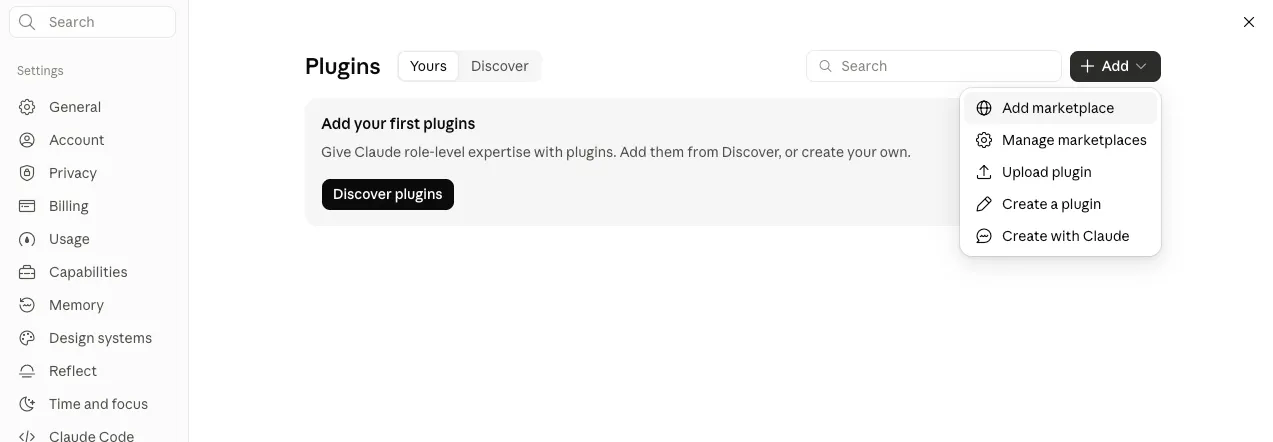
Open Settings, go to Plugins, and click + Add. The menu lists Add marketplace, Manage marketplaces, Upload plugin, Create a plugin and Create with Claude. Choose Add marketplace.
-
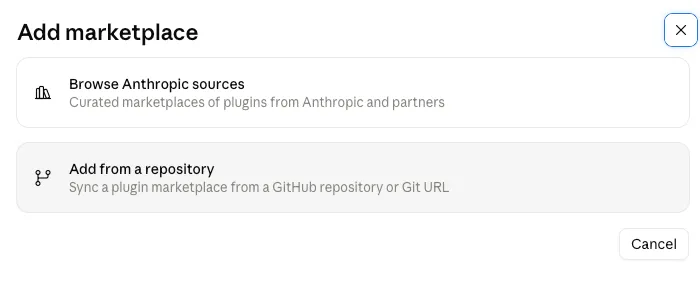
In the Add marketplace dialog, choose Add from a repository. The other option, Browse Anthropic sources, lists curated marketplaces and does not include s1ft.
-
Paste
https://github.com/s1ft-app/skillsinto the URL field.s1ft-app/skillsworks too. Click the Use “https://github.com/s1ft-app/skills” suggestion. Claude Desktop shows a warning that plugins from marketplaces are not controlled by Anthropic. The s1ft skills are plain text files, and you can read them first on GitHub.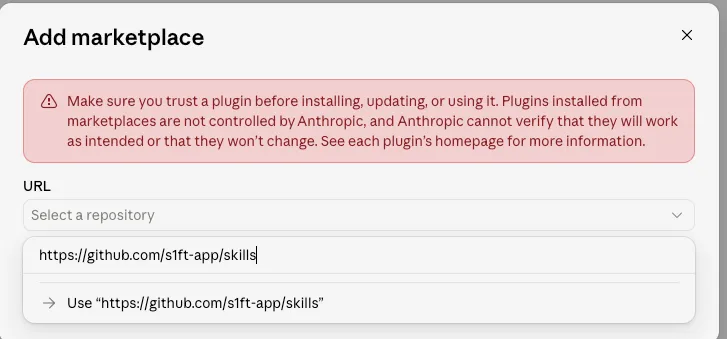
-
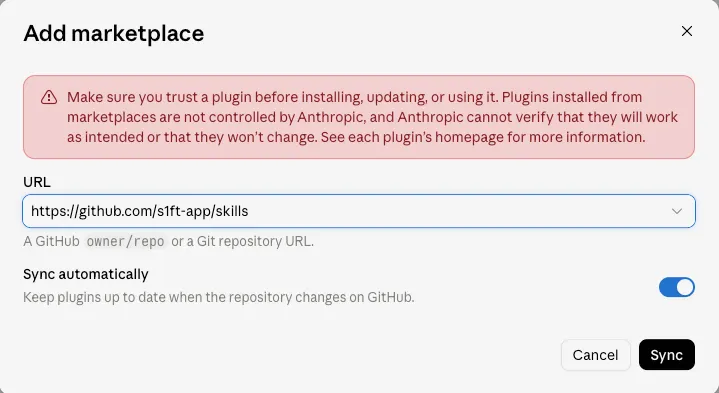
Keep Sync automatically on, then click Sync.
-
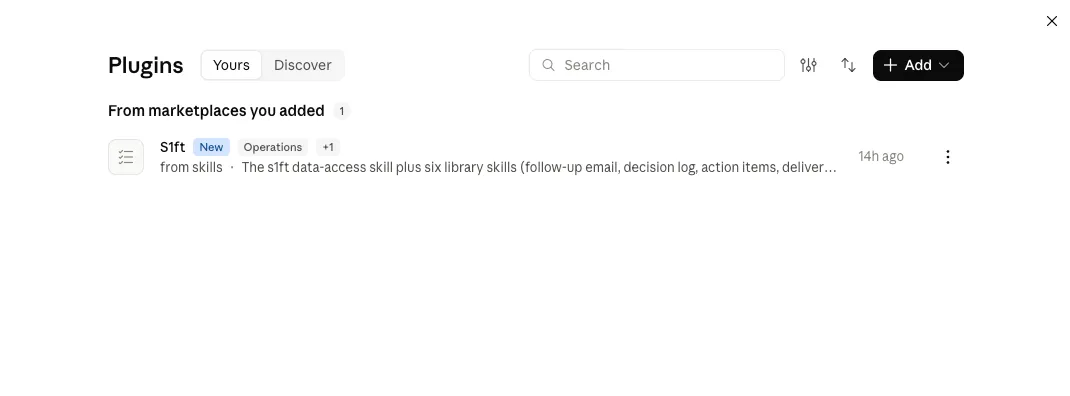
The S1ft plugin now appears under Yours, in the list “From marketplaces you added”. There is no separate install step.
-
Open S1ft and go to the Skills tab. It lists all 8 skills:
/action-items,/decision-log,/follow-up-email,/meeting-type,/review-my-delivery,/s1ft,/summaryand/weekly-trends.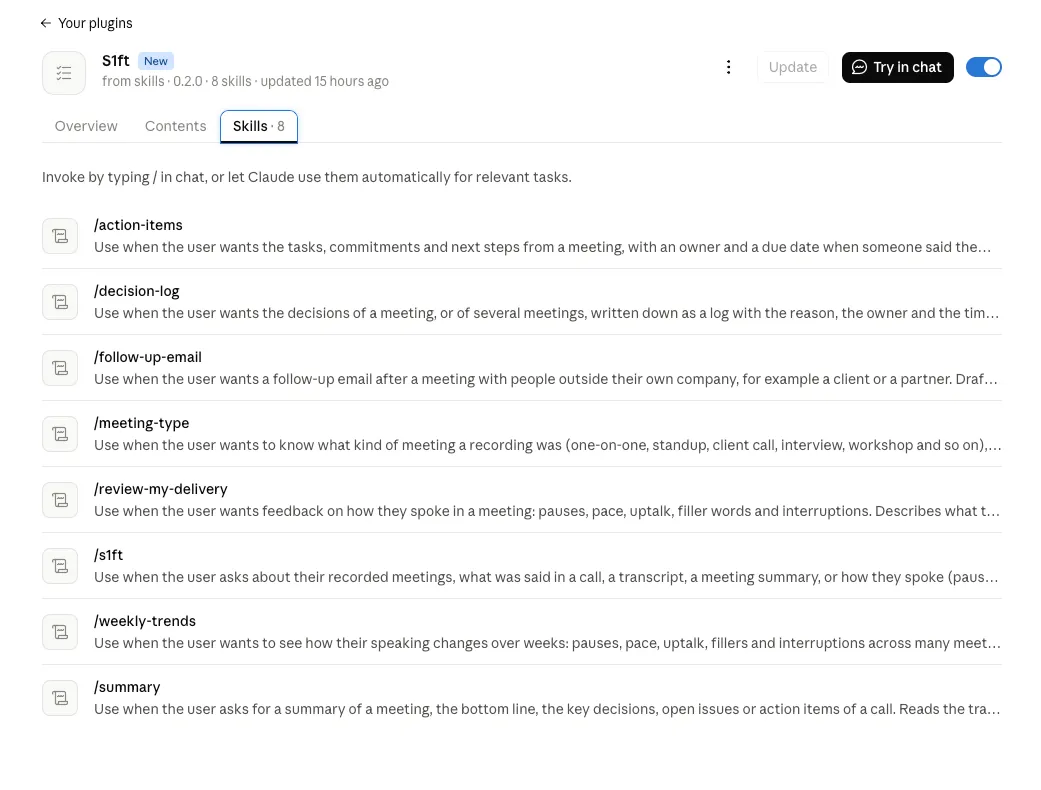
Use the skills in the Code tab. A plain chat cannot read files on your Mac. See Claude Desktop notes.
Other agents
For Codex, Cursor, Gemini CLI and other agents that read Agent Skills, run:
npx skills add s1ft-app/skills --skill s1ftChoose your agent when prompted. The install is per project by default; add -g to install globally.
Copy to your agent
Paste this prompt into your coding agent. It checks which agent it is and runs one install method for you.
Install the s1ft agent skills from https://github.com/s1ft-app/skills so you can read my s1ft meeting recordings.

1. Check which agent you are, then use ONE install method only:
   - If you are Claude Code, run `claude plugin marketplace add s1ft-app/skills`, then `claude plugin install s1ft@s1ft-skills`.
   - If you are another agent, run `npx skills add s1ft-app/skills --skill s1ft` and select your agent.
2. Use the s1ft skill to run `s1ft --version`. It must print 1.3.0 or later. If the command is missing or the version is lower, tell me to install or update S1ft from https://s1ft.app and stop.
3. Run `s1ft meetings list` and show me my three newest meetings.
4. Tell me which other skills exist in the repo (follow-up-email, decision-log, action-items, review-my-delivery, meeting-type, weekly-trends, summary) and what each one does. Do not install them until I ask.Read the skill, or install it by hand
- Read
SKILL.mdon GitHub, or fetch the raw Markdown directly. - For a manual install, copy the whole
skills/s1ftfolder into your agent’s skills folder.
Use one installation method only. Two methods give you duplicate copies of the skill.
The s1ft skill needs S1ft 1.3 or later. Once it is installed, ask your agent something that needs your meetings, for example “What did we decide in my last meeting?”.
Updates
- Claude Code. Run
claude plugin marketplace update s1ft-skillsin your terminal, then run/reload-pluginsor restart Claude Code. - Claude Desktop. Open Plugins, open the s1ft marketplace, and click Check for updates. With Sync automatically on, updates also arrive on their own, but it can take a while. A plugin installed this way went from 0.1.0 to 0.2.0 without any action.
- skills.sh. Run
npx skills update. - Manual copy. Replace the
skills/s1ftfolder with the latest version from GitHub.
Where the agent looks for meetings
The s1ft command picks the meetings folder from the first source that gives one:
- The
--dir <path>option. - The
meetingsDirkey in~/Library/Application Support/s1ft/cli.json. - The output folder set in the s1ft app (see Settings reference).
~/Documents/s1ft Meetings.
To see which folder is in use, run s1ft config dir. To point the command at another folder, run s1ft config dir <path>. The folder must exist.
If a list comes back empty, the agent tells you which folder it searched. Only meetings recorded with S1ft 1.3 or later appear there.
Choose a library skill and adapt it
The library has 7 skills on top of the base s1ft skill, so 8 skills in all. They are plain text files, so you can change them. Each library skill has an Adapt this skill section that lists the parts to change.
| Skill | What it does |
|---|---|
follow-up-email | Drafts a follow-up email. Does nothing when the meeting had no external attendees. |
decision-log | Writes the decisions of a meeting as a log with the reason, the owner and the time. |
action-items | Lists the commitments with owner and due date. |
review-my-delivery | Looks at your pauses, pace, uptalk, fillers and interruptions in one meeting. |
meeting-type | Names the kind of meeting from the attendees, speakers, length and content. |
weekly-trends | Compares your speaking numbers week by week. |
summary | Writes a short summary of one meeting: bottom line, decisions, open issues and action items. |
To use a skill as it is, install it by name:
npx skills add s1ft-app/skills --skill decision-logWith the Claude Code plugin, all 8 skills are already installed.
To adapt a skill:
- Copy the skill folder into your own skills folder, so a plugin update does not overwrite your changes.
- Open its
SKILL.mdand find Adapt this skill. - Change the parts it lists, for example your email domain, the fields of an entry, or where the output file goes.
- Run the skill on one meeting and read the result before you automate it.
The two worked examples below show what an adaptation looks like.
Run a skill automatically
A skill runs when you ask an agent to run it. To run one after each meeting without asking, start the agent from a script. claude -p "<prompt>" runs Claude Code once and prints the result. codex exec "<prompt>" does the same in Codex.
A script that checks for new meetings
s1ft writes meeting.json only after the transcript exists, so a new meeting in the list means the transcript is ready. This script asks the s1ft command for the meeting list, remembers which meetings it has seen, and starts the agent once for each new one. The first time it runs, it only records the existing meetings and starts nothing.
Save it as ~/bin/s1ft-new-meetings.sh. It needs jq (brew install jq).
#!/bin/bash
set -eu

S1FT="${S1FT:-$HOME/.local/bin/s1ft}"
STATE="${STATE:-$HOME/.s1ft-agent-seen}"

run_agent() {
  # $1 = meeting id, $2 = meeting name
  claude -p "Use the decision-log skill for the s1ft meeting with id $1 (\"$2\")." \
    --allowedTools "Bash(s1ft:*)" Read Write < /dev/null
}

first_run=0
[ -f "$STATE" ] || first_run=1
touch "$STATE"

"$S1FT" meetings list --json | jq -r '.meetings[] | [.id, .name] | @tsv' |
while IFS=$'\t' read -r id name; do
  grep -qxF "$id" "$STATE" && continue
  echo "$id" >> "$STATE"
  [ "$first_run" -eq 1 ] && continue
  run_agent "$id" "$name"
doneMake it executable with chmod +x ~/bin/s1ft-new-meetings.sh. To use Codex, replace the claude -p line in run_agent with codex exec "<your prompt>".
The script logic is tested against a stand-in for s1ft and claude. Running the real claude -p from a scheduler, and the codex exec variant, are not verified here. Test them once by hand before you rely on them.
Run the script with launchd
launchd is the macOS scheduler. A launch agent that runs the script every five minutes needs one file, ~/Library/LaunchAgents/app.s1ft.new-meetings.plist. Replace YOURNAME with your macOS user name.
<?xml version="1.0" encoding="UTF-8"?>
<!DOCTYPE plist PUBLIC "-//Apple//DTD PLIST 1.0//EN" "http://www.apple.com/DTDs/PropertyList-1.0.dtd">
<plist version="1.0">
<dict>
  <key>Label</key><string>app.s1ft.new-meetings</string>
  <key>ProgramArguments</key>
  <array><string>/Users/YOURNAME/bin/s1ft-new-meetings.sh</string></array>
  <key>EnvironmentVariables</key>
  <dict>
    <key>PATH</key><string>/Users/YOURNAME/.local/bin:/opt/homebrew/bin:/usr/local/bin:/usr/bin:/bin</string>
  </dict>
  <key>StartInterval</key><integer>300</integer>
</dict>
</plist>Load it with launchctl bootstrap gui/$(id -u) ~/Library/LaunchAgents/app.s1ft.new-meetings.plist.
Why an interval and not WatchPaths? Apple’s launchd.plist manual calls WatchPaths “highly discouraged” because file system events can be missed. It also watches the meetings folder itself, which changes when a meeting folder is created, not when meeting.json arrives later.
The plist is checked with plutil -lint. Loading it with launchctl and a real meeting is not verified here.
Hazel and cron
Both start the same script. Neither is verified here.
- cron. Run
crontab -eand add*/5 * * * * /Users/YOURNAME/bin/s1ft-new-meetings.sh >> /Users/YOURNAME/s1ft-agent.log 2>&1. macOS can block cron from reading some folders until you grant Full Disk Access tocron. - Hazel. Hazel is a paid third-party folder-watching app. Add a rule on your meetings folder with a Run shell script action that calls the script. Check that the rule looks inside subfolders, because
meeting.jsonsits one level down.
Claude Code scheduled tasks
For work that is not tied to one meeting, such as a weekly analysis, use a Claude Code scheduled task with a prompt like “Use the weekly-trends skill for my meetings from the last 7 days.” The scheduled task feature is not verified here. Follow the Claude Code documentation to create it.
Worked example: a decision log only for client calls
Goal: write a decision log for client calls only. Internal meetings are skipped.
The decision-log skill lists “Which meetings” first in its Adapt this skill section. You can set the filter in the prompt that your script sends. In run_agent, replace the prompt with:
Use the decision-log skill for the s1ft meeting with id $1. First read the attendees in meeting.json. If every attendee email ends in @example.com, stop and write nothing. Otherwise write the decision log and append it to ~/Documents/decision-logs/client-calls.md.Replace example.com with your own domain. The agent reads calendarEvents for the attendee emails, so this only works for meetings that matched a calendar event with attendees. Turn on your calendars first: see Settings reference.
To make the filter permanent, copy the skill and put the same rule under “Which meetings” in your copy.
Worked example: a follow-up email only when external attendees exist
Goal: draft a follow-up email after a meeting, but only when someone from outside your company was there.
The follow-up-email skill already stops when no attendee is external. It says “No external attendees in this meeting, so I wrote no follow-up.” and writes no draft. It does not send anything. It shows the draft in the chat.
You adapt one thing: your own domain. Without it, the skill asks you once per run. In your copy of the skill, find “Your own domain(s)” under Adapt this skill and put your domains in step 2, for example example.com, example.org.
Then send this prompt from your script:
Use the follow-up-email skill for the s1ft meeting with id $1. Save the draft to ~/Documents/follow-ups/<meeting name>.md.An attendee counts as external when the email domain differs from yours. Attendees without an email, and room calendars, are ignored.
Claude Desktop notes
These notes belong to the Claude Desktop install steps.
Where it works
- Code tab. Works fully. It can use local files and run on your Mac, so it can call the
s1ftcommand. - Plain chat. A normal chat cannot see files on your Mac, so it finds no meetings.
Common issues
- The agent does not use the skill. Invoke it with
/s1ft:s1ft, or ask for it by name, for example “Use the s1ft skill”. Then restart the agent. - The skill finds no meetings. Run
s1ft config dirto see the folder the skill reads. Only meetings recorded with S1ft 1.3 or later appear. - The skill is out of date after an update. Run the update step for your method (see Updates), then restart the agent.
What’s next
- Getting Started with s1ft — Install s1ft and record your first meeting.
- Finding your recordings — Where each meeting folder lives and what is in it.
- Meeting data files — Every field of
meeting.json,transcript.jsonandtelemetry.json. - Settings reference — The output folder and the calendar accounts that fill in attendees.
- AI Engine Setup — The engine that writes your summaries after each meeting.
- Review your delivery with an AI agent — Use your voice numbers for a review of how you speak.
Have an idea for a skill? Post it in the Community skills discussions before you open a pull request.