s1ft does not run its own AI. You bring the engine. Pick a provider, paste your own API key or point s1ft at a local model, and every summary goes straight from your Mac to that engine. No s1ft server sits in between.
All of this lives in one place: open Settings (press Cmd + , with the s1ft menu bar popup open) and click the AI Engine tab.
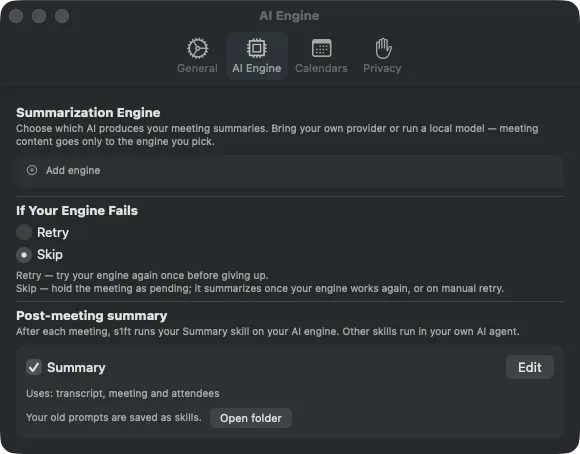
The tab has three sections, top to bottom: Summarization Engine, If Your Engine Fails, and Post-meeting summary. This article walks through them in that order.
Choose a provider
Click Add engine. A picker lists four presets and an Advanced / Custom… option.
| Preset | Runs where | Key needed | Base URL |
|---|---|---|---|
| Anthropic | Remote | Yes | https://api.anthropic.com |
| OpenAI | Remote | Yes | https://api.openai.com/v1 |
| Ollama (local) | On this Mac | No | http://localhost:11434/v1 |
| LM Studio (local) | On this Mac | No | http://localhost:1234/v1 |
For the two remote presets the picker says “Paste an API key, pick a model”. For the two local presets it says “Runs on this Mac — no key needed”. The base URL is fixed for each preset and is not shown during setup.
The two local presets talk to a server you run yourself. Ollama listens here by default:
http://localhost:11434/v1LM Studio listens here by default:
http://localhost:1234/v1If you run a local model, it must be installed and the server must be running before you add the engine. For the install steps and hardware guidance, see Local Models with Ollama and LM Studio.
Advanced / Custom
Advanced / Custom… opens the full editor for any other OpenAI-compatible or Anthropic-protocol endpoint. You set the kind (Remote provider or Local model), the protocol (OpenAI-compatible or Anthropic), a display name, the base URL, the model name, and an optional API key. s1ft has two rules here:
- A remote engine must use an
https://base URL. - A local engine may use
http://only forlocalhostor a private-network host.
Plain http:// is allowed only for loopback and private-network hosts: localhost, 127.x.x.x, 10.x.x.x, 172.16.x.x to 172.31.x.x, 192.168.x.x, 169.254.x.x, and names that end in .local. s1ft never sends requests over plain http:// to a public host. Use https:// for anything else.
Click Verify to test the connection before you click Save.
If s1ft removes a saved engine
When s1ft loads your saved engines, it checks each one against these rules. If a saved engine breaks them (for example, a remote engine with an http:// address), s1ft removes it from the list. An orange notice then appears at the top of the AI Engine tab:
1 saved engine(s) were removed because their address is not allowed (https, or http to localhost/private network only). The original file was kept as a backup next to engine_configs.json.
The number in the notice is how many engines were removed. s1ft keeps your original file as a backup in the same folder as engine_configs.json, named engine_configs.quarantine-<timestamp>.json, so nothing is lost.
Click Dismiss to hide the notice. Then add the engine again with a valid address, using one of the presets or Advanced / Custom…. Your other engines are not affected.
If engine_configs.json was changed outside s1ft
s1ft checks that engine_configs.json is the same file it last saved. If the file was edited by another program or by hand, or if s1ft can’t confirm it (for example, its companion engine_configs.json.mac check file is missing), s1ft doesn’t trust any of it. The engine list is empty, and an orange notice appears at the top of the AI Engine tab:
Your saved engines were removed because engine_configs.json was changed outside s1ft. Add them again to continue. The original file was kept as a backup next to it.
To get going again:
- Click Dismiss to hide the notice.
- Add your engines again with a preset or Advanced / Custom….
- Click Verify on each one, as you did the first time.
s1ft doesn’t try to repair the file, so you must re-add every engine. It moves the original file to the same folder as engine_configs.json and names it engine_configs.quarantine-<epoch>.json, where <epoch> is the time of the check in seconds. You can open that backup to copy an address or model name, but s1ft never loads it again.
Don’t edit engine_configs.json by hand. Change engines in the AI Engine tab instead.
Load the model list with Fetch models
The model name is a plain text field. To pick from the endpoint’s own list instead, fill in the Base URL (and the API key, if the endpoint needs one), then click Fetch models. s1ft does not fetch the list while you type. It sends the request only when you press the button, because the request carries your API key to the host in the Base URL field.
When the fetch works, a Choose from N available models menu appears under the field. Pick a model and s1ft fills in the name. When it fails, an orange message appears under the button and names the host:
- “Couldn’t fetch models from host. Enter a model name manually.” The host did not answer, or it returned no list.
- “host rejected the API key.” Check the key.
- “Enter a valid base URL first.” The Base URL field is empty or not a full address.
Type the model name by hand whenever the fetch fails. The text field stays available at all times, and Verify works the same way.
Fetch models works only with the OpenAI-compatible protocol. With Anthropic selected, the button is disabled, so enter the model name yourself.
Where your API key goes
When a preset asks for a key, the field reads “Stored in your Keychain only”. That is exactly where it goes. s1ft saves each engine’s key as one item in your macOS Keychain, under the service app.s1ft.notecapture and this account name:
byo.engine.<uuid>.apiKey<uuid> is the engine’s own identifier. The key is never written to the engine configuration file on disk.
The key leaves your Mac in one direction only: inside the request to the provider you chose. s1ft sends summaries directly from your Mac to that provider. s1ft’s own servers are never in the path. The key does not appear in any log or error message; debug logs record status codes only.
To remove a key, delete the engine. Deleting an engine deletes its Keychain item with it.
Pick a model and verify
Setup for a remote preset has three steps.
- Paste your API key and click Continue. s1ft fetches the provider’s live model list. This call also checks the key: a rejected key shows “This API key was rejected — check it in your provider console.”
- Choose a model from the Model picker. s1ft pre-selects a default. If the live list cannot be fetched, s1ft shows the preset’s standard models instead and tells you so. For OpenAI, the picker shows
gpt-models by default; tick Show all models to see the rest. - Click Save & Verify.
For a local preset there is no key step. s1ft fetches the model list from your local server as soon as the sheet opens. If the server cannot be reached, you get a text field and enter the model name yourself (for example llama3.2).
Save & Verify sends a fixed one-line probe to the engine (“Reply with the single word OK.”). The probe never contains meeting content. The result is stored on the engine row:
- Not verified — no probe has succeeded yet.
- Verified with a date — the engine answered.
- Verification failed with the cause — for example “invalid API key”, “quota or rate limit”, “model unavailable”, or “provider unreachable”.
You can re-run the probe at any time from the row’s … menu with Verify. There is no edit action for an existing engine: to change its base URL, model, or key, delete the engine and add it again.
Only a verified engine can be selected as the active engine. The selector circle on an unverified row is disabled.
The consent sheet
The first time you select a remote engine, s1ft shows a sheet titled “Send Meeting Content to Anthropic?” (with the name of the provider you picked). It states that meeting content will go to that provider under their terms, including the transcript with speech from all participants and measured voice telemetry. It also states that s1ft never sees this data and that you can revoke the consent at any time.
- Click Accept to record consent and make the engine active.
- Click Decline to leave your previous selection in place. Nothing is recorded.
The engine row then shows Consent granted. To withdraw it later, open the row’s … menu and click Revoke Consent. If that engine was active, s1ft deactivates it and shows a notice. New meetings wait as pending until you select an engine again.
Local engines show no provider consent sheet, because nothing leaves your Mac. They still require the AI-processing acknowledgment from onboarding.
s1ft checks consent again at summarization time, not only when you select the engine. Revoking consent stops transmissions immediately.
If your engine fails
The If Your Engine Fails picker has two options. The default is Skip.
- Retry — s1ft tries your engine one more time, then marks the meeting as failed with the cause.
- Skip — s1ft holds the meeting as pending. You choose when it goes to your engine; see Sending waiting meetings.
In both cases the transcript is already on disk. Nothing is lost. There is no hidden fallback engine: if no usable engine exists, the meeting waits as “pending — engine needed” until an engine is active and verified and you confirm the send.
Failed summaries are never retried automatically. If a summary fails, the meeting shows an orange dot in your recordings list. Click the dot and use the retry button to send it again. See Finding Your Recordings for the status dots.
Sending waiting meetings to your engine
When meetings are waiting as “pending — engine needed”, s1ft asks before it sends any of them. A card appears in the menu bar popup with the title Send N past meetings to followed by the provider name (for example, “Send 3 past meetings to Anthropic?”). It appears when:
- an engine becomes active and verified,
- you turn on the Summary switch in Settings > AI Engine, or
- s1ft starts and meetings are already waiting.
The card names the provider and model. It says that the transcripts and measured context go to that provider, and that nothing is sent unless you choose Send.
- Click Send to summarize the waiting meetings, one after another.
- Click Not now to send nothing. The meetings stay pending, and the card comes back at the next trigger from the list above.
While the batch runs, the card reads Summarizing past meetings: 2 of 5 with a progress bar and a Cancel button. Click Cancel to stop. s1ft finishes the meeting it is working on and does not start the next one. Meetings it did not reach stay pending.
Only meetings that were waiting for an engine are part of this batch. Meetings whose summary failed are not included, and neither are meetings transcribed while Summary was off. s1ft does not summarize those on its own. Retry a failed meeting from its row in the recordings list.
The Summary entry
The last section of the AI Engine tab is Post-meeting summary. It holds one entry, Summary. After each meeting, s1ft runs the Summary skill on the engine you selected.
The Summary switch turns the summary on and off. It replaces the AI summaries switch that used to sit in the General tab, and it controls the same setting. If you had AI summaries off before the update, Summary is off too. For all the controls of the entry, see the Settings reference.
A few rules about how the summary runs:
- One call per summary. s1ft sends one request to your engine. Only a very long meeting is split into parts and combined afterward.
- No engine, no summary. If no engine is active and verified, the meeting waits as “pending — engine needed”.
- Consent first. s1ft sends nothing to a remote provider until you give consent for that provider. See The consent sheet.
- Only declared data. s1ft sends only the data that the skill declares under Uses. See Choose what the summary uses.
- The result is a file. The summary is saved as
summary.mdin the meeting folder.
The skill is a normal file on your Mac:
~/Library/Application Support/s1ft/skills/summary/SKILL.mdThe file follows the open Agent Skills format, so you can read it, and agents such as Claude Code and Codex can use the same format. s1ft keeps the list of data it sends in the s1ft-uses key under metadata. By default the value is transcript, meeting.
Edit the Summary
Click Edit on the Summary entry. The editor opens in its own window. Resize it or close it with Cmd + W. s1ft saves as you type, and closing the window keeps your changes. There is no Cancel button.
The left pane has the title Summary, the Uses boxes, and a large text area for the instructions. The instructions are the text that tells your engine how to write the summary. The name of the skill is fixed. An Edited badge appears beside the title when your text or your Uses choice differs from the one s1ft ships. Restore default brings back the shipped skill.
The right pane is the preview. Hide Preview at the bottom collapses it.
Choose what the summary uses
The Uses heading reads “Uses — only checked data is sent to your engine”. It has three boxes:
| Box | What it sends | Checked by default |
|---|---|---|
| Transcript | The words of the meeting, with time and speaker | Yes |
| Meeting and attendees | The title, time, and attendees from meeting.json | Yes |
| My voice numbers | Pitch range, level, and silences for each span of your own voice | No |
s1ft sends only what is checked. A change to a box is saved at once.
You can’t clear the last checked box, so at least one box always stays on. That box is disabled until you check another one.
The default Summary skill declares Transcript and Meeting and attendees only. It sends no voice data until you check My voice numbers. The voice numbers are not a file in the meeting folder. For a new meeting, s1ft calculates them from telemetry.json when the summary runs and does not save them. Older recordings send per-utterance numbers instead. For what each file holds, see Meeting data reference.
If the skill file is unreadable
If SKILL.md is missing or broken, the Summary entry shows an orange Skill file unreadable notice and no summary runs. s1ft never falls back to its built-in text on its own. It shows the notice instead, so a broken file can’t go unnoticed.
Click Restore default to write the shipped Summary skill again. This is the only action that writes the file in that state.
When s1ft loads the file, it ignores frontmatter keys it doesn’t know. If you then change the Summary in the app, s1ft saves only the keys it knows and drops the others. Keep a copy of any extra keys you added by hand.
Your old prompts
Earlier versions of s1ft kept a library of several prompts. The first time you start a version with the Summary skill, s1ft moves them:
- Your active prompt becomes the Summary skill.
- Your other prompts, and any built-in prompt you had edited, are saved as skills in
skills/imported/<slug>/SKILL.md. Each one declares Transcript and Meeting and attendees.
The full path of the folder is:
~/Library/Application Support/s1ft/skills/imported/Click Open folder in the Summary entry to open it in Finder. A note titled “Your prompts moved” shows once. Click Dismiss to close it. s1ft runs only the Summary skill. The imported skills are for your own AI agent. See Connect AI agents to install them there.
Run the same summary in an agent
The same summary is available as the public summary skill in the s1ft skills repository. In Claude Code, with the s1ft plugin installed, you run it as /s1ft:summary. The agent reads your meeting files and gives the summary in its reply. It does not write summary.md. Connect AI agents shows how to install it.
Preview against a sample
The preview pane runs the Summary instructions without touching any meeting folder. Nothing is written and no notes change.
- Open the source picker at the top of the pane.
- Choose one of the two shipped samples, or one of your own meetings grouped by day. The default is Sample — Product standup (3 speakers). The second sample, Sample — Discovery workshop (no telemetry), shows what the context looks like when no voice data exists.
- Click Run.
The Output tab shows the rendered result. Below it, a receipt lists the engine, the model, the elapsed time, and how many characters were sent. Copy puts the raw Markdown on the clipboard.
If you edit the instructions after a run, the state line changes to “Preview complete — out of date”. Run again to refresh.
With no engine set up, the pane says No engine configured and offers a Set Up AI Engine button. The Context sent tab still works.
The first time you preview one of your own meetings, s1ft shows a one-time sheet. It names the engine and model and reminds you that the run sends that meeting’s data, the same content a normal summary sends. Click Run Preview to proceed.
The Context sent view
After the instructions, s1ft adds one block of meeting data. The Context sent tab shows that exact block for the selected meeting. What you see there is what the engine receives; the view and the sender share one renderer, so they cannot differ. The block follows your Uses boxes, so a box you clear removes its data from the view.
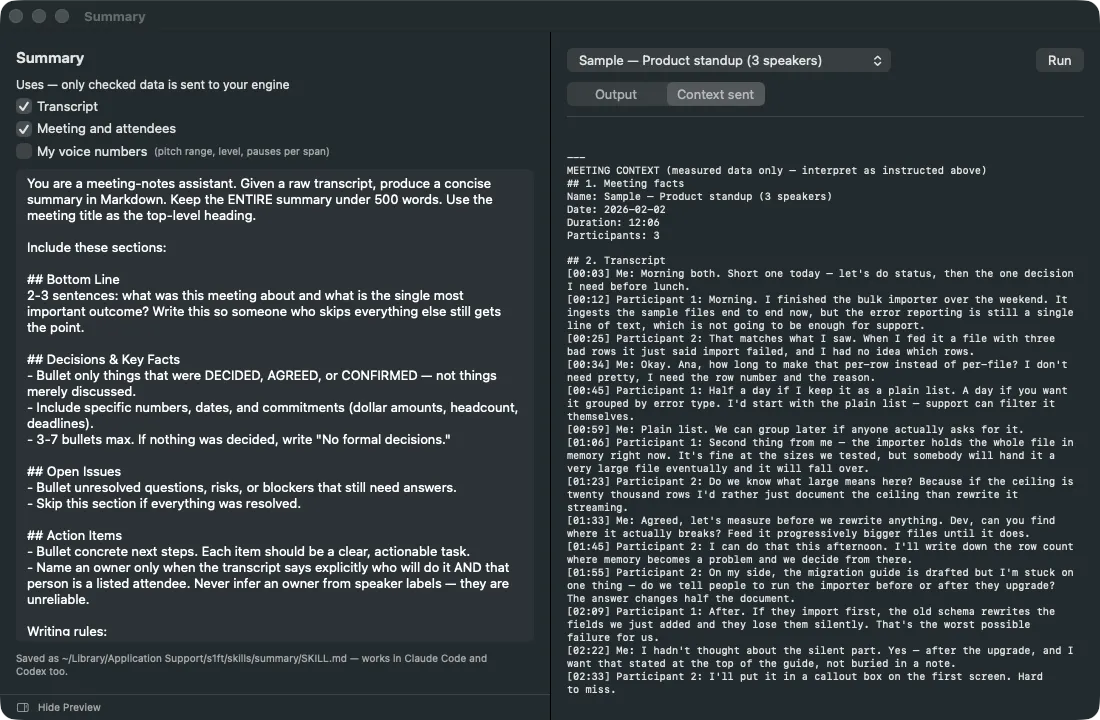
The block starts with the line “MEETING CONTEXT (measured data only — interpret as instructed above)”. It can hold these parts:
- Meeting facts — name, date, duration, and participant count.
- Meeting data — the content of
meeting.json, when Meeting and attendees is checked. - Transcript — every segment with its timestamp and speaker label. Your own segments are labeled “Me”; other speakers are labeled by number.
- Speaker turns — the start and end time of each turn, when the meeting has turn data.
- Your voice statistics per span (mic channel only) — when My voice numbers is checked. For each span, you see the pitch range and percentiles, the level, and the silences. They cover your own voice only.
The voice part states its own limit: voice data exists only for your own voice. Other participants have transcript text and turn timings only.
The context contains measurements only. s1ft does not add judgments, labels, grades, or word counts of any kind to it. Interpreting the numbers is the job of the instructions. The Context sent view needs no engine. You can open it before you have set one up.
What’s next
- Connect AI agents — Run the Summary and other skills in your own AI agent.
- Meeting data reference — The files that hold each meeting.
- Settings reference — Every tab in Settings, explained.
- Review your delivery with an AI agent — Agent skills that review how you spoke.
- Recording & consent — What s1ft records and how to tell participants.