If something isn’t working with audio capture, start with the problem that matches what you’re seeing. Each section below covers a specific issue and how to fix it. For an overview of how s1ft captures audio, see Recording & Consent.
No audio captured at all
Symptoms: You stop a recording and the transcript is empty, or the audio files contain silence.
Causes and fixes:
-
Microphone permission not granted. macOS blocks mic access until you explicitly allow it. Go to System Settings > Privacy & Security > Microphone and make sure s1ft is toggled on.
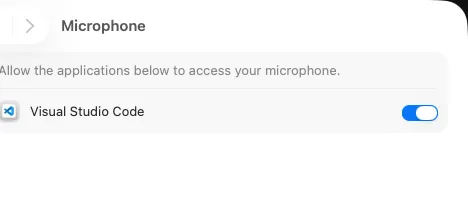
If s1ft doesn’t appear in the list, it hasn’t requested mic access yet. Start a recording, and macOS will prompt you. Click OK to allow it, then try recording again.
-
Screen & System Audio Recording permission not granted. s1ft uses a Core Audio process tap to capture meeting audio. macOS requires Screen & System Audio Recording permission for this. Go to System Settings > Privacy & Security > Screen & System Audio Recording and turn on s1ft. You may need to restart s1ft after granting this permission.
-
No input device available. If your Mac has no microphone connected (for example, a Mac mini or Mac Pro without a headset), s1ft can’t capture your voice. Connect a microphone or headset and try again.
Only your voice is captured (no meeting audio)
Symptoms: The transcript only contains what you said. Other participants’ voices are missing.
Cause: s1ft records your microphone and system audio as two separate streams. If system audio capture fails, you’ll still get your mic recording but nothing from the meeting app.
Fixes:
-
Grant Screen & System Audio Recording permission. This is the most common cause. Go to System Settings > Privacy & Security > Screen & System Audio Recording and confirm s1ft is enabled. Without this permission, the audio tap creation fails with a “permission denied” error.
-
Restart s1ft after granting permission. Some permission changes don’t take effect until the app restarts. Quit s1ft (right-click the menu bar icon or use the menu) and reopen it.
-
Check if another app is blocking the audio tap. In rare cases, other audio capture tools can interfere with the process tap. If you run screen recording software or another meeting recorder at the same time, try disabling it temporarily.
Only meeting audio is captured (your voice is missing)
Symptoms: The transcript has what other people said, but your own speech is absent.
Cause: The microphone pipeline failed to start, or your mic is muted at the hardware or OS level.
Fixes:
-
Check that your mic isn’t muted. Some headsets have a physical mute button or switch. Also check macOS input volume: go to System Settings > Sound > Input and make sure the input volume slider isn’t all the way down.
-
Check the mic status indicator. While recording, the s1ft popup shows a mic status line below the elapsed timer. Look for these states:
- “VPIO (noise suppression)” or “Direct capture” means the mic is working.
- “Mic disconnected — recovering…” (shown in orange) means the device was lost and s1ft is trying to reconnect.
- “Mic capture failed!” (shown in red) means recovery was exhausted after 6 attempts. Stop the recording and check your mic connection.
-
Try a different microphone. If s1ft can’t start capture on your current device, switching to a different input device (even your Mac’s built-in mic) can help isolate the problem.
Audio cuts out during a recording
Symptoms: Parts of the recording or transcript are missing. Audio drops out and may come back.
Cause: The microphone was disconnected mid-recording. This happens when you unplug a USB headset, when a Bluetooth device loses connection, or when macOS switches the default input device.
How s1ft handles this: When s1ft detects that the mic device died or the default input device changed, it automatically tries to recover. It stops the current mic session, finds the new default input device, and restarts capture. You’ll see the status change to “Mic disconnected — recovering…” in the popup. If recovery succeeds, recording continues on the new device.
s1ft attempts recovery up to 6 times. If all attempts fail, the mic status changes to “Mic capture failed!” and only system audio continues recording.
What you can do:
- Keep your audio device connected. Avoid unplugging headsets or letting Bluetooth devices go out of range during a recording.
- If you see “Mic disconnected”, check your headset connection. s1ft will recover automatically once a working input device is available.
- If recovery fails, stop the current recording, fix your mic setup, and start a new recording. The portion captured before the failure is still saved.
Poor audio quality or excessive noise
Symptoms: The recording sounds muffled, distorted, or has a lot of background noise. Transcription accuracy is low.
Cause: Audio quality depends on your microphone hardware, environment, and which capture mode s1ft uses.
Fixes:
-
Use a dedicated microphone or headset. Built-in laptop microphones pick up more background noise than external mics. A USB headset or desk microphone gives noticeably better results.
-
Check the capture mode. s1ft uses Apple’s Voice Processing IO (VPIO) by default, which applies noise suppression, echo cancellation, and automatic gain control. If VPIO isn’t available for your device, s1ft falls back to direct capture without these enhancements. The mic status in the popup tells you which mode is active:
- “VPIO (noise suppression)” means noise suppression is active. This is the better mode.
- “Direct capture” means VPIO couldn’t initialize for your mic. You’ll get raw audio without processing.
-
Bluetooth microphones skip VPIO. s1ft detects Bluetooth audio devices and uses direct capture instead of VPIO, because VPIO is often incompatible with Bluetooth HFP (Hands-Free Profile). If you want noise suppression, use a USB or built-in microphone instead.
-
Adjust the sample rate. In Settings > General, the Sample Rate picker controls the recording quality. The default is 48 kHz, which is the best option for most setups. Lowering it to 16 kHz reduces file size but also reduces audio fidelity. If you changed this and quality dropped, set it back to 48 kHz.
-
Reduce background noise in your environment. Close windows, move away from noisy appliances, and consider a quiet room. No amount of software processing can fully compensate for a loud environment.
Permission denied error
Symptoms: s1ft shows an error about permissions when you try to record, or recording fails silently.
Cause: macOS requires two separate permissions for s1ft to work:
- Microphone — for capturing your voice
- Screen & System Audio Recording — for capturing meeting audio via a Core Audio process tap
If either permission is missing, part or all of the recording will fail. The system audio permission specifically triggers a “permission denied” error because the audio tap can’t be created without it.
How to fix:
- Open System Settings > Privacy & Security > Microphone. Toggle s1ft on.
- Open System Settings > Privacy & Security > Screen & System Audio Recording. Toggle s1ft on.
- Restart s1ft after changing permissions.
If the toggles are grayed out, your Mac may be managed by an organization that restricts these settings. Contact your IT admin.
Wrong microphone selected
Symptoms: s1ft captures audio from the wrong mic (for example, the built-in mic instead of your headset).
Cause: s1ft always uses the macOS default input device. It doesn’t have its own microphone picker. Whatever mic macOS is set to use is what s1ft records from.
How to fix:
- Open System Settings > Sound > Input.
- Select the microphone you want to use.
- s1ft will use this device for the next recording. If you switch the default input device during a recording, s1ft detects the change and automatically switches to the new device.
You can also click the Sound icon in the menu bar (if visible) or use the volume keys to quickly switch input devices.
s1ft shows “Mic capture failed!” in red
Symptoms: During a recording, the mic status turns red with the text “Mic capture failed!”
Cause: s1ft tried to recover the microphone up to 6 times and every attempt failed. This usually means no working input device is connected, or the device has a hardware problem.
How to fix:
- Stop the current recording. The system audio portion (other participants) is still saved.
- Check your microphone connection. Reconnect USB devices, re-pair Bluetooth headsets, or switch to a different mic.
- Verify the mic works in another app (for example, Voice Memos or QuickTime Player).
- Start a new recording in s1ft.
Still stuck?
If none of the above fixes your issue, try these general steps:
- Quit and reopen s1ft. This resets all audio pipelines.
- Restart your Mac. This clears any stuck audio processes or permission states.
- Check for macOS updates. Audio driver bugs are occasionally fixed in system updates.
- Contact support. Reach out at [email protected] with a description of your issue, your macOS version, and what microphone you’re using.