How recording works
s1ft captures two separate audio streams at the same time:
- Your microphone — your voice, picked up through your Mac’s built-in mic or any connected external mic. s1ft uses Voice Processing I/O (VPIO) for noise suppression by default, with a fallback to direct capture if VPIO isn’t available.
- System audio — what other participants say, captured through a Core Audio tap on your Mac’s audio output. This picks up the audio from your meeting app without joining the call as a bot.
Both streams are saved as WAV files in your recordings directory. When transcription runs, the two streams are merged into a single transcript with speaker-aware formatting.
No bot joins the call. Other participants won’t see any indication that recording is active.
Starting and stopping a recording
Manual recording
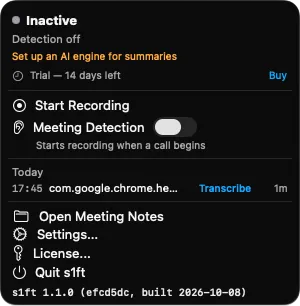
- Click the s1ft icon in your menu bar.
- Click Start Recording.
- The status indicator turns red and shows Recording, along with an elapsed timer and the name of the detected meeting (if any).
- When you’re done, click the menu bar icon again. You’ll see two options:
- Stop Recording — stops the recording and keeps the files.
- Stop & Delete — stops the recording and gives you the option to delete it. Useful if you started recording by mistake.
Automatic meeting detection
s1ft can start recording on its own when it detects a meeting (see the full meeting detection guide for details):
- Click the s1ft icon in your menu bar.
- Turn on the Meeting Detection toggle.
- The status changes to Ready with a green indicator, and the label below the toggle reads “Starts recording when a call begins.”
When Meeting Detection is on, s1ft listens for microphone activity. Once it detects audio input from a supported meeting app, it identifies the platform, looks up your calendar for the meeting name, and starts recording automatically.
After the meeting ends, s1ft stops recording on its own. It waits until the mic has been silent for the Silence timeout first. You can change the timeout in the Advanced section at the bottom of Settings > General. Type a value from 1 to 60 seconds. The default is 10 seconds. This prevents false stops during short pauses.
What the status indicator shows
The colored dot in the top-left corner of the menu bar popup tells you what’s happening:
| Color | State | Meaning |
|---|---|---|
| Gray | Inactive | Meeting Detection is off. Only manual recording is available. |
| Green | Ready | Meeting Detection is on and watching for calls. |
| Yellow | Detecting meeting… | Mic activity detected, s1ft is identifying the meeting platform. |
| Red | Recording | A recording is in progress. Shows the meeting name and elapsed time. |
| Orange | Mic off — ending in Xs | The mic went silent. Recording will stop after the countdown finishes unless audio resumes. |
During recording, you’ll also see the mic capture mode below the timer:
- VPIO (noise suppression) — the preferred mode, which filters background noise.
- Direct capture — fallback mode if VPIO isn’t available.
- Mic disconnected — recovering… — your mic was unplugged or switched. s1ft is trying to reconnect.
- Mic capture failed! — recovery failed after multiple attempts. System audio recording continues, but your voice won’t be captured.
Supported meeting platforms
s1ft detects meetings from these apps:
- Zoom (native app)
- Microsoft Teams (native app)
- Slack (native app — huddles)
- Webex (native app)
- Google Meet (through any supported browser)
Browser-based meetings work in Chrome, Arc, Brave, Edge, Firefox, and Safari. s1ft detects Google Meet and web-based Teams sessions by checking browser tab titles.
For manual recordings, the platform doesn’t matter. You can record any audio playing through your system — the platform detection only applies to automatic Meeting Detection mode.
Your consent responsibility
s1ft records audio from all participants in a meeting, not just you. Before you record, you must inform everyone on the call and get their agreement.
This isn’t optional. Recording laws vary by jurisdiction, but most require consent from all parties. s1ft does not notify participants on your behalf — that’s your job.
Here’s what you agreed to during the consent onboarding when you first launched s1ft:
s1ft is a tool — you control when and what to record. s1ft is not responsible for unauthorized or unlawful recording.
By proceeding, you accept full responsibility for obtaining consent from all meeting participants.
If you use AI summaries, tell participants that their words go to an AI provider as text. When s1ft runs a summary, it sends the transcript text and the meeting details from your Mac directly to the AI engine you chose. That provider’s terms apply to the data. Nothing passes through s1ft. Audio never leaves your Mac. If you tick My voice numbers in the Summary editor, it also sends numbers about your own voice: pitch range, level, and pauses for each span. If you do not run a summary, s1ft sends nothing at all.
Before s1ft sends meeting content to a remote provider for the first time, it shows a consent sheet in the AI Engine tab that asks you to confirm Send Meeting Content to your provider (see the consent sheet). If your engine is a local model, such as Ollama or LM Studio, the data stays on your Mac. For how s1ft itself handles data, read the privacy policy.
Consent disclosure templates
s1ft includes three ready-to-use templates you can copy and share with participants before a meeting. Find them in Settings > Privacy.
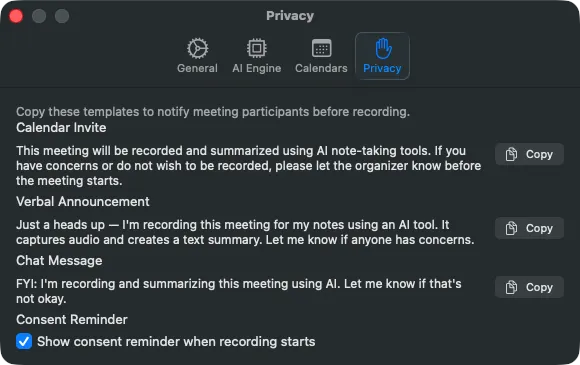
Calendar invite
Add this to your meeting invitation so participants see it before the call:
This meeting will be recorded and summarized using AI note-taking tools. If you have concerns or do not wish to be recorded, please let the organizer know before the meeting starts.
Verbal announcement
Say this at the start of the call:
Just a heads up — I’m recording this meeting for my notes using an AI tool. It captures audio and creates a text summary. Let me know if anyone has concerns.
Chat message
Drop this in the meeting chat if you prefer a quick written notice:
FYI: I’m recording and summarizing this meeting using AI. Let me know if that’s not okay.
Each template has a Copy button next to it in the Privacy tab. Click it, paste it wherever you need it.
Notifications you’ll see
Every s1ft notification is a macOS notification posted by the app on your Mac. s1ft sends nothing to any other device. Each notification appears only a few times. After that, the menu bar icon is your signal: it animates while s1ft records, transcribes, or downloads a model, and returns to idle when the work is done.
Consent reminder
For your first five recordings, s1ft posts a macOS notification titled s1ft — Recording Started. It reads: “Team Standup” is being recorded. All participants must consent to recording. s1ft posts it when the recording stops. The notification has two buttons:
- Stop Recording — tells s1ft to stop the recording.
- Got Consent — closes the notification. No other action follows.
From the sixth recording on, s1ft shows a banner in the menu bar window instead, while the recording runs. The banner reads “All participants must consent to recording.” Click Don’t show again on the banner to turn the reminder off.
To turn the reminder on or off at any time, open Settings > Privacy and use the Show consent reminder when recording starts toggle. The default is on. When the toggle is off, neither the notification nor the banner appears.
Recording finished
When one of your first two recordings stops, s1ft posts a macOS notification titled Recording finished. The body shows the meeting name and its length in minutes, for example Team Standup · 42m. The notification has no buttons.
After two recordings, this notification stops for good. There is no setting for it. The menu bar icon shows you when s1ft is busy.
Transcript ready
The first time s1ft finishes a transcript on your Mac, it posts one macOS notification titled Your meeting is ready. The body shows the meeting name and its length, for example "Team Standup" — 42m. This notification appears once only, ever.
- Click the notification to open
transcript.mdin the app your Mac uses for Markdown files. - Click Set Up AI Engine to bring s1ft to the front. The menu bar window then shows a card that reads “Your meeting was transcribed”, with a Set Up AI Engine button that opens Settings and a Dismiss button. The card appears only if you have no engine yet.
Every later transcript is silent. No notification fires. Open the s1ft menu bar window to read or share a transcript: see Finding recordings in the app.
If you did not allow notifications, s1ft cannot post this one. Instead, it shows the same card in the menu bar window, if you have no engine yet.
Summary failed
If you run AI summaries and your engine fails, s1ft posts a macOS notification titled Summary failed, followed by the meeting name. The body names the cause, such as an invalid API key or a model that is not loaded, and tells you what happens next. The next step depends on your If Your Engine Fails setting. Read If your engine fails.
If notifications don’t appear
s1ft asks for permission to show notifications the first time it launches. If you denied permission, or want to change it later:
- Open System Settings on your Mac.
- Click Notifications.
- Click s1ft in the list of apps.
- Turn on Allow Notifications.
Without this permission, none of the notifications above appear. The transcript-ready card in the menu bar window still appears.
What’s next
- Settings Reference — Every control in the General and Privacy tabs.
- AI Engine Setup — Connect the engine that writes your summaries.
- Finding Your Recordings — Where s1ft puts transcripts and summaries.