s1ft is a macOS menu bar app that records your meetings and writes a transcript on your Mac. There is no account to create and no login. Setup is four steps, and only the first two are required.
Three ways to use s1ft
Decide what you want from s1ft before you start. The steps you need depend on it.
- Transcripts only. Install s1ft and allow the two permissions. Every meeting becomes a
transcript.mdfile in a folder on your Mac. No AI engine, no key, no setup beyond Step 2. - Review your delivery. s1ft records the pitch and level of your own voice during each meeting. The
review-my-deliveryandweekly-trendsagent skills work out pauses, pace, and uptalk from that data and turn them into a review, in your own AI agent. See Review your delivery with an AI agent. - Automatic summaries. After each meeting, an AI engine writes
summary.mdnext to the transcript. The engine is yours: a model that runs on your Mac through Ollama or LM Studio, or Anthropic or OpenAI with your own API key. See AI Engine Setup and Local Models with Ollama and LM Studio. This path needs Step 4.
Whichever path you take, transcription always runs on your Mac and is always free.
Step 1: Install s1ft
s1ft needs macOS 14.2 (Sonoma) or later.
- Download the installer from s1ft.app.
- Open the
.dmgfile. - Drag s1ft into your Applications folder.
- Open s1ft from the Applications folder.
s1ft has no Dock icon. Look for the s1ft icon at the top right of your screen, in the menu bar. Click it to open the popup. The popup holds every control you need day to day, and its footer shows the exact version you are running.
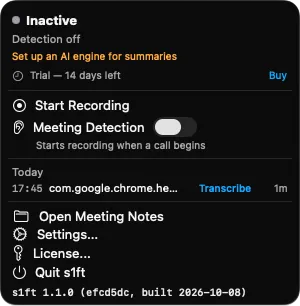
Your 14-day trial starts the first time s1ft opens. Nothing is held back during the trial. See Trial & license activation for what happens when it ends.
Step 2: Allow microphone and system audio
s1ft records two audio streams: your microphone, and the audio your meeting app plays. Each stream has its own macOS permission. macOS asks for both the first time s1ft records.
Microphone
- Start a recording, or wait for meeting detection to start one.
- macOS shows a dialog that reads “s1ft needs permission to record microphone audio.”
- Click Allow.
System audio
- macOS shows a second dialog that reads “s1ft needs permission to record system audio.”
- Click Allow.
If you dismissed the dialog, or you want to check the setting later, open System Settings → Privacy & Security → Screen & System Audio Recording. Scroll to the section System Audio Recording Only. Switch on the row s1ft.
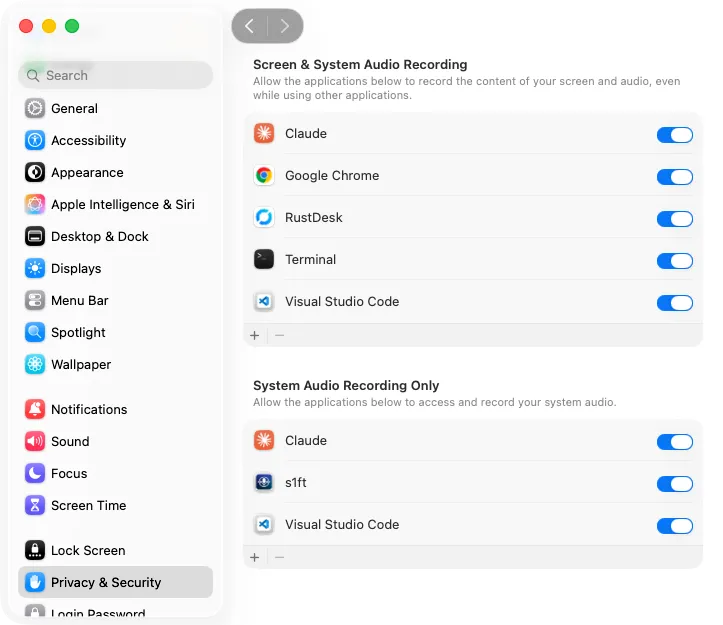
On macOS 14, the same entry appears under Screen Recording instead. s1ft captures audio only. It does not capture your screen.
Without microphone access, s1ft cannot record your voice. Without system audio access, s1ft cannot record the other participants.
Step 3: Turn on calendars
This step is optional. It gives your meeting folders real names.
When a recording starts, s1ft checks the macOS Calendar for an event within five minutes of the current time. If it finds one, the folder is named after that event. If it finds none, the folder is named after the meeting app plus a timestamp, for example 2026-10-07-15-00_zoom.us. A manual recording with no match is named 2026-10-07-15-00_manual.
The macOS Calendar app already knows your accounts. There is no login inside s1ft.
s1ft reads event titles and times, and your own email address to label each account. It does not read other attendees. All of this happens on your Mac, through the system Calendar. Calendar data stays on your Mac. No server to trust. s1ft stores no calendar passwords.
- Click the s1ft menu bar icon.
- Click Settings….
- Click the Calendars tab.
- Click Grant Access…. macOS asks once whether s1ft may read your calendar events. Click Allow.
- Switch on each account you want s1ft to use for naming.
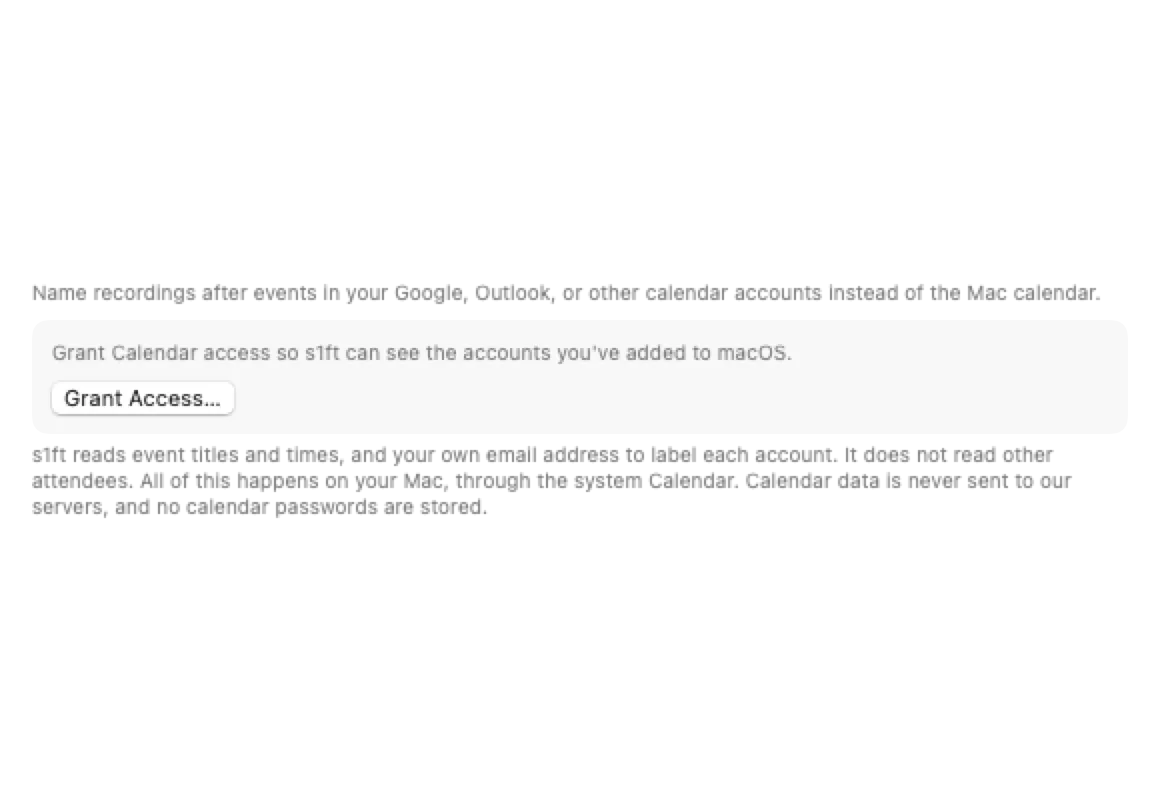
If the list is empty, the tab reads “No calendar accounts found. Add your Google or Outlook account in System Settings → Internet Accounts, then come back here.” Add the account there first. s1ft picks it up on its own.
s1ft looks at your calendar twice for each meeting. The first look happens when the recording starts. The second look happens after transcription, across the accounts you switched on here. If the second look finds a better match, s1ft renames the folder.
Step 4: Pick an AI engine (optional)
Skip this step if you want transcripts only. s1ft transcribes every meeting whether or not an engine exists. Without an engine, no summary.md is written.
For summaries or a delivery review, add one engine.
- Click the s1ft menu bar icon.
- Click Settings….
- Click the AI Engine tab.
- Click Add engine.
- Click one of the four presets: Anthropic, OpenAI, Ollama (local), or LM Studio (local).
- For Anthropic or OpenAI, paste your API key and pick a model. For Ollama or LM Studio, pick a model from the list.
- Click Save & Verify.
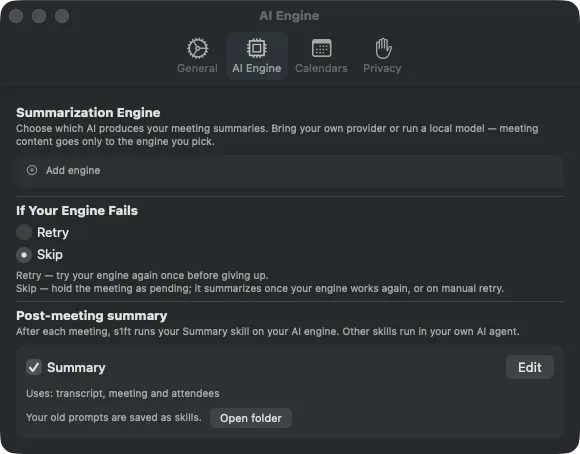
Until you add an engine, the popup header shows the link Set up an AI engine for summaries. Click it to go straight to this tab.
An API key goes into your macOS Keychain and nowhere else. The two local presets need no key. The full walkthrough, including the Summary editor and the preview, is in AI Engine Setup. The local path, with hardware guidance, is in Local Models with Ollama and LM Studio.
The first-launch onboarding
The first time s1ft opens, it shows three screens. You must pass the first two. You can defer the third.
Screen 1: What s1ft does
The title reads “s1ft turns your meetings into notes — automatically.” Three cards follow:
- Meeting notes (marked Free): every meeting becomes a transcript, always on your Mac.
- AI summaries: key points and action items after each call.
- Private by design: everything stays on your Mac, and meeting content goes only to the AI engine you choose.
Click Next.
Screen 2: How s1ft records
This screen explains that s1ft records your microphone and the call audio directly on your Mac, and that no bot joins your calls. It also reminds you that participants see no recording indicator, so it is on you to tell them.
Tick both boxes to continue:
- I will notify all participants before recording and take responsibility for obtaining their consent
- I am at least 18 years old and agree to the Terms of Service
Click Continue.
Screen 3: Set up your AI engine
The title reads “Set up your AI engine”. The text below it states that transcripts are always free and stay on your Mac, and that for AI summaries you connect your own AI. Meeting content goes directly to the provider you choose, never through s1ft.
The screen lists the same four presets as the AI Engine tab. Each Anthropic and OpenAI row reads “Paste an API key, pick a model — about a minute”. Each Ollama and LM Studio row reads “Runs on this Mac — no key needed”. A button named Advanced / Custom… opens the full engine editor.
Click a preset to set up an engine now. Or click Do this later to finish onboarding without one. You can add an engine at any time in Step 4.
Record your first meeting
To record by hand:
- Click the s1ft menu bar icon.
- Click Start Recording.
- Speak, and let the meeting run.
- Click the icon again. Click Stop Recording.
To let s1ft start on its own, switch on Meeting Detection in the popup. The caption under it reads “Starts recording when a call begins”. Detection is on by default. s1ft watches your microphone. When a supported meeting app starts to use it, s1ft starts a recording.
When the recording stops, s1ft transcribes it on your Mac. The meeting appears in the Today list in the popup with its transcription status. Click Open Meeting Notes to open the folder in Finder. How to browse and rename meetings is in Finding your recordings.
What stays on your Mac
Every meeting gets one folder under ~/Documents/s1ft Meetings. You can change the location in Settings → General. The folder holds up to five files.
| File | When it is written | How long it stays |
|---|---|---|
mic.wav, system.wav | During the recording | Until the retention period ends |
transcript.md | When transcription finishes | Until you delete it |
telemetry.json | When transcription finishes | Until you delete it |
summary.md | Only when an AI engine runs | Until you delete it |
transcript.md and telemetry.json persist. s1ft never deletes them on its own. The Stop & Delete button in the popup discards a recording while it is still running, before any transcript exists.
The two WAV files follow the retention setting in Settings → General → Auto-delete after. The default is 7 days. The choices are Immediately, 1, 3, 7, 14, or 30 days, or Keep forever. s1ft only deletes a WAV after its transcript exists. The sweep runs when s1ft starts and every 6 hours after that.
Nothing leaves your Mac unless you run a summary. When a summary runs, s1ft sends the transcript text and the meeting details to the engine you chose, plus the voice numbers if you checked My voice numbers, straight from your Mac to that provider. It never sends audio, and nothing passes through s1ft. If your engine is Ollama or LM Studio, even the summary stays on your Mac.
What’s next
- AI Engine Setup — Connect Anthropic, OpenAI, Ollama, or LM Studio, and edit the Summary and use the preview.
- Review your delivery with an AI agent — The agent skills that review one meeting or show your weekly trends.
- Local Models with Ollama and LM Studio — Run summaries on your own Mac with no API key, plus hardware guidance.
- Connect AI agents — Let Claude Code, Claude Desktop or Codex read your meetings and run skills after each one.
- Trial & license activation — How the 14-day trial works and how to activate a key.
- Billing & license — What the one-time license covers and how refunds work.