How auto-detection works
When you turn on Meeting Detection, s1ft watches your Mac’s microphone activity. As soon as an app on the allowlist starts using audio input, s1ft checks whether it’s a known meeting platform and begins recording automatically.
Here’s the sequence:
- Microphone activates. s1ft monitors all connected input devices through macOS Core Audio. The moment any conferencing app turns on the mic, s1ft enters a “detecting” state.
- Platform identified. s1ft checks which process is using the audio input and matches it against a list of known meeting apps. If a match is found, detection succeeds.
- Recording starts. s1ft captures both your microphone and system audio into separate WAV files, just like a manual recording.
- Meeting ends. s1ft polls the detected process every 3 seconds. When the app stops using the audio input (you leave the call or the call ends), a countdown begins. The countdown length is the Silence timeout in Settings > General > Advanced, and the default is 10 seconds. If audio input doesn’t resume within that window, the recording stops automatically.
If you briefly drop off a call and rejoin before the countdown ends, s1ft keeps the same recording going instead of creating a new one.
The Meeting Detection toggle
Open the s1ft menu bar popover. Below the Start Recording button, you’ll see a toggle labeled Meeting Detection with a subtitle that reads “Starts recording when a call begins.”
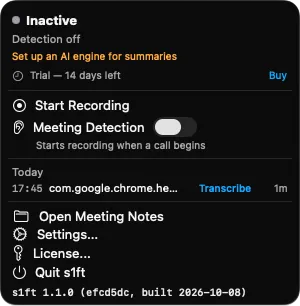
Flip the toggle on, and the status indicator at the top changes from Inactive to Ready with a green dot. s1ft is now listening for meetings.
When detection is off, the status shows Inactive with a gray dot. You can still start recordings manually — detection just controls whether s1ft records on its own.
Status indicators
The colored dot in the status header tells you what s1ft is doing:
| Color | Status | Meaning |
|---|---|---|
| Gray | Inactive | Meeting Detection is off. No automatic recording. |
| Green | Ready | Meeting Detection is on, waiting for a call to start. |
| Yellow | Detecting meeting… | Mic activity detected, identifying the platform. |
| Red | Recording | Actively recording a meeting. |
| Orange | Mic off — ending in Ns | The meeting app stopped using the mic. Recording will end when the countdown reaches zero, unless audio resumes. |
Supported platforms
s1ft detects meetings from these apps and services:
| Platform | Detection method |
|---|---|
| Zoom (native app) | Audio input from us.zoom.* process |
| Microsoft Teams (native app) | Audio input from com.microsoft.teams* process |
| Slack (huddles) | Audio input from com.tinyspeck.slackmacgap process |
| Webex | Audio input from com.webex.* process |
| Google Meet (in browser) | Audio input from browser process + tab URL matching |
| Microsoft Teams (web, in browser) | Audio input from browser process + tab URL matching |
Browser-based detection works at two levels:
- Full detection (Chromium browsers): Google Chrome, Arc, Brave, and Microsoft Edge support tab URL inspection via AppleScript. s1ft can identify the specific service (Google Meet, web Teams) and extract the meeting name from the tab title.
- Audio-only detection (other browsers): Firefox and Safari are recognized when they use audio input, but s1ft cannot inspect their tabs. The recording is labeled with the browser name rather than the specific meeting service.
Native conferencing apps are identified directly by their process bundle ID.
How meeting names are determined
s1ft picks the best available name for each recording, using this priority:
-
Calendar event title (preferred). s1ft checks your macOS Calendar for events happening right now (within a 5-minute window around the current time) that contain a conference link in their notes, location, or URL field. Recognized link patterns include
zoom.us,meet.google.com,teams.microsoft.com,webex.com, andwhereby.com. If a matching event is found, its title becomes the meeting name. -
Browser tab title (fallback). If no calendar match is found and the call is in a browser, s1ft reads the active tab title. For Google Meet, it strips the ” - Google Meet” suffix to extract the meeting name. For web Teams, it strips ” | Microsoft Teams.”
-
Native app window title (fallback). For the native Teams app, s1ft reads window titles to find a meeting name.
-
Platform name only. If none of the above produce a name, the recording is labeled with just the platform (e.g., “Google Chrome” or “zoom.us”).
You can rename any recording later. In the “Today’s meetings” list, hover the recording and click the pencil, or right-click it and choose Rename…. Press Return or click outside the field to save, or press Esc to discard. See renaming a recording for details.
Calendar access
The first time s1ft tries to match a calendar event, macOS asks you to grant Calendar access. If you deny it, meeting names fall back to the browser tab or platform name. You can change this later in System Settings > Privacy & Security > Calendars.
When multiple calendar events match (for example, overlapping meetings with conference links), s1ft picks the one with the start time closest to right now. The other matching events are offered as alternative name suggestions you can choose from.
Back-to-back meetings
If one call ends and a different call starts immediately (detected as a different process), s1ft automatically stops the first recording and starts a new one for the second meeting. There’s no gap between recordings.
After a recording ends, s1ft also ignores that calendar event for 60 seconds when it picks a name for the next recording. This is a fixed window and is separate from the Silence timeout.
The command-line tool has its own --debounce option for the same countdown. Its default is 60 seconds.
Tips
- Leave detection on. It’s designed to run all the time. The mic listener uses almost no resources when idle.
- Keep your calendar connected. Calendar event titles are more reliable than browser tab names, especially for recurring meetings where the organizer set a clear title.
- Grant Accessibility and Automation permissions. s1ft needs Accessibility access to read browser tab URLs (via AppleScript). Without it, browser-based meetings will still be detected, but the meeting name will be less specific.