When you report a problem, the single most useful detail you can include is the exact build you’re running. s1ft shows it in two places: the menu bar popup and a log file that exists on every install. Both show the same string, in the same format:
s1ft 1.1.0 (6682d7d, built 2026-10-08)That’s the version number, the exact source commit, and the build date. Copy it as-is into your bug report.
The full shape is s1ft <version> (<sha>[-dirty], built <date>). The optional -dirty suffix on the commit means the app was built from a checkout that had uncommitted changes on top of that commit, so the binary doesn’t exactly match the source at that SHA:
s1ft 1.1.0 (6682d7d-dirty, built 2026-10-08)A build from a clean checkout has no suffix. If you see -dirty, keep it in the string you send; it tells us the build can’t be reproduced from the commit alone.
In the app: the menu bar popup
- Click the s1ft icon in the menu bar to open the popup.
- Look at the very bottom of the popup, below Quit s1ft. The version line is the small gray monospaced text in the footer.
- The text is selectable. Click and drag to select the whole line, press Cmd + C, and paste it into your bug report.
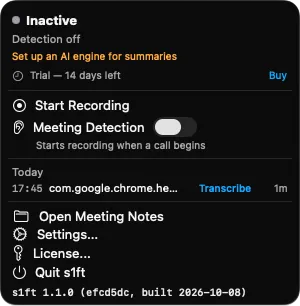
You don’t need to open Settings or turn anything on — the line is always there when the popup is open.
One exception: if your trial has ended and the popup shows the locked screen, the version line isn’t visible. Use the log file below instead.
In the log file
Every install writes a log file at:
~/Library/Logs/s1ft/notecapture.logThis file exists even if you’ve never changed a setting. Each time s1ft launches, it appends one line with a timestamp and the build identity, so the last line of the file names the build you’re currently running:
2026-10-08T20:22:12Z s1ft 1.1.0 (6682d7d, built 2026-10-08)You do not need to enable Debug logging to get this — the version line is written on every launch regardless. Debug logging is a separate, optional setting for detailed troubleshooting output, covered in the Settings Reference.
To open the file:
- In Finder, press Cmd + Shift + G (Go to Folder).
- Paste
~/Library/Logs/s1ftand press Return. - Double-click
notecapture.logto open it in Console or your text editor.
Or from Terminal:
tail ~/Library/Logs/s1ft/notecapture.logThe log file is useful when the app won’t launch or the popup is locked — it records the build from previous launches too, one line per launch.
What to include in a bug report
Email [email protected] with:
- The version line, copied from the popup footer or the log file.
- Your macOS version — Apple menu > About This Mac.
- What happened — what you did, what you expected, and what you saw instead.
- The log file, if the problem relates to recording or audio. Attach
notecapture.logfrom the folder above.
For audio-specific problems, check the Microphone Troubleshooting guide first — many common issues have a quick fix there.